

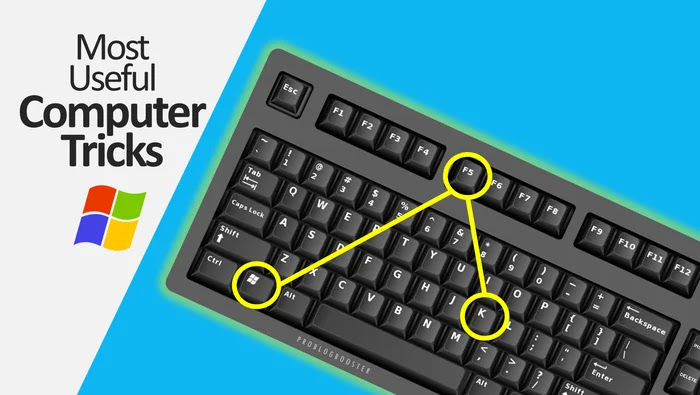
Most 5 Useful Computer Tips
Here is a tailor-made blog post written to match the branding of Digital Fast IT Solution. It balances practical everyday tech tips with slight internal nods to the solutions you provide (like PC upgrades and bootable backups).
5 Essential Computer Tips Every PC User Should Know
Whether you use your computer for freelance work, running a business, or just browsing the web, encountering slowdowns, sudden crashes, or inefficient workflows can be incredibly frustrating.
At Digital Fast IT Solution, we believe technology should make your life easier, not more complicated. To help you get the absolute most out of your setup, we have compiled the top 5 most useful computer tips that will boost your productivity, secure your files, and keep your system running smoothly.
1. Master the Ultimate “Undo” and Recovery Shortcuts
We all know the standard copy-and-paste shortcuts, but there are a couple of hidden keyboard combinations that can save you a massive amount of time and panic:
- Bring back a closed browser tab: Accidentally shut a tab containing an important article or product page? Don’t dig through your history. Just press
Ctrl + Shift + T(Windows) orCmd + Shift + T(Mac) to instantly resurrect your last closed tab. - The system-wide undo: If you accidentally delete a file in a folder, move a paragraph in a document, or make a mistake while editing, pressing
Ctrl + Zwill instantly undo your last action.
2. Clean Up Your Startup Applications
Does your computer take ages to get to the desktop when you turn it on? A major culprit is often a long list of applications trying to launch simultaneously in the background.
You can manually choose what opens on boot to significantly cut down loading times:
- Windows: Press
Ctrl + Shift + Escto open the Task Manager, click on the Startup apps tab, and disable applications you do not need running right away (like Spotify, Discord, or heavy software launchers). - Mac: Head over to System Settings > General > Login Items and remove unnecessary apps from the list.
3. Upgrade to an SSD for an Instant Speed Boost
If you are still running your operating system on an older mechanical Hard Disk Drive (HDD), your system is running on a massive bottleneck. Upgrading your storage type is the single most cost-effective hardware upgrade you can make.
Switching to a Solid State Drive (SSD) delivers read and write speeds that are significantly faster than a traditional HDD. Your computer will boot up in seconds, applications will open instantly, and file transfers will become seamless.
4. Use “God Mode” to Simplify Your Windows Settings
Finding specific system settings in Windows can sometimes feel like searching through a maze. “God Mode” is a hidden developer trick that consolidates over 200 administrative tools and settings into a single, easily searchable folder.
How to activate it:
- Right-click on your desktop and select New > Folder.
- Copy and paste this exact string as the folder’s name:
GodMode.{ED7BA470-8E54-465E-825C-99712043E01C} - Press Enter. The folder icon will change, and opening it will give you instant access to every control panel setting imaginable in one clean list.
5. Always Maintain a Bare-Metal Backup Strategy
No matter how carefully you maintain your machine, hardware failures, malware infections, or corrupt updates can happen when you least expect them. Cloud storage like Google Drive or OneDrive is great for individual documents, but it won’t restore a broken computer.
Make it a habit to create a full system image backup onto an external drive or a dedicated bootable drive. Having a physical, offline copy of your system means that even if your main drive completely fails, you can recover your entire environment, operating system, and data without starting from scratch.
Need a Hand Upgrading Your Setup?
Implementing a few small habits can keep your computer running beautifully for years. If your PC is still feeling sluggish, or if you are looking to make that crucial jump to an SSD or set up a secure backup recovery plan, we are here to help.
Explore our latest hardware packages and recovery tools directly at Digital Fast IT Solution to keep your tech running at peak performance!
Leave a Reply